

PGSharp allows Pokémon Go users to mock their GPS location. However, encountering the issue of PGSharp stuck on the loading screen can halt your virtual journey. This AWZTool article will help you find plausible reasons and solutions to fix PGSharp stuck on the loading screen. Stay tuned for a knowledgeable read.
Why Is My PGSharp Stuck on the Loading Screen?
If you're wondering, "Why is my PGSharp stuck on loading screen," you're not alone. Various factors, such as connectivity issues, outdated versions, or incorrect settings, could be causing the problem. Let's explore the possible reasons behind this frustrating issue.
- Issues with the Internet Connection: A poor or unstable internet connection is usually a common reason why PGSharp is not working. If your WiFi signal or mobile data signal is weak, PGSharp may struggle to load correctly.
- Server Issues of PGSharp: Sometimes, the servers of the PGSharp app may be overloaded due to high traffic or undergo routine maintenance. In such a case, you may find the PGSharp app getting stuck. So, ensure to check if there are any known server outages.
- App Incompatible with Device or OS: PGSharp's incompatibility with your device or operating system is another reason it gets stuck on the loading screen. Updates to Pokémon Go, or your phone's software can create compatibility issues, causing PGSharp to get stuck on the loading screen.
- Outdated PGSharp App: If you are using an outdated or obsolete PGSharp version, you may experience problems loading correctly. Ensure the app is updated to avoid loading problems.
How to Fix PGSharp Stuck on Loading Screen
Now that we've covered the common reasons behind PGSharp being stuck on the loading screen, it's time to explore the fixes. Follow these simple and quick solutions to resolve the issue and get back to enjoying Pokémon Go without any hassle.
Fix 1 - Check Network Connection
As you know, a poor or weak/unstable internet connection can cause PGSharp to get stuck. So, make sure your device is connected to a stable network through WiFi or mobile data.

Fix 2 - Clear Cache of PGSharp App
Apps store temporary data (cache) over time, which can sometimes cause issues. Clearing the PGSharp app cache can often fix problems like being stuck on the loading screen.

Fix 3 - Reboot the Pokémon Go Device
Rebooting is another smart solution to fix the issue of PGSharp's stuck loading screen. You can restart your device where you are playing the game, whether it's your phone or tablet, to get rid of any temporary software glitches affecting the location spoofer app's functionality.
Fix 4 - Update and Restart PGSharp App
Using an outdated PGSharp version is a plausible reason for affecting the app's functioning and can cause the loading screen problem. Check if a new PGSharp version is available, and if so, download the latest update.

Fix 5 - Uninstall and Reinstall PGSharp
If the above-suggested fixes do not work, try uninstalling and reinstalling PGSharp to resolve your issue. You must uninstall the app from your device and then visit the official PGSharp website to download the latest version. Once you have reinstalled the app, log back in and check if the loading screen issue is resolved.
If you've been using PGSharp for location spoofing in Pokémon Go but are facing issues or limitations, you may need a reliable alternative, and AWZ AnyPorter is the perfect solution. Let's explore it in detail.
Best Alternative to PGSharp Location Spoofer - AWZ AnyPorter
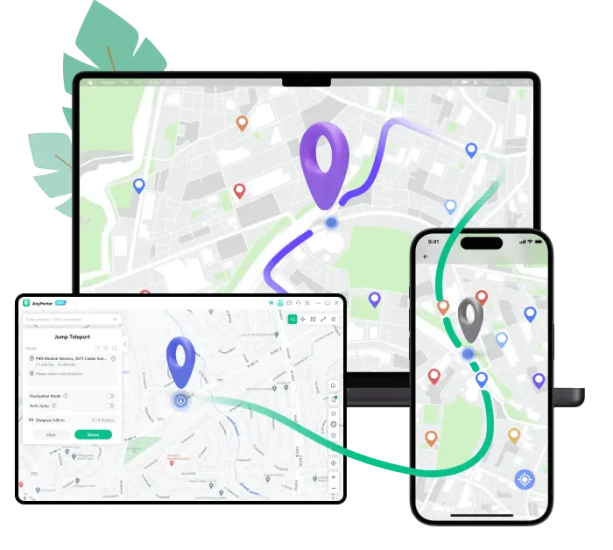
AWZ AnyPorter is a reliable app that helps you easily change your location anywhere in the world without the risk of detection. It offers seamless GPS spoofing with a user-friendly interface. Whether you want to access remote areas or catch rare Pokémon, AWZ AnyPorter ensures smooth and safe location manipulation. Unlike PGSharp, it offers additional features like customizable speed, enhanced GPS accuracy, and compatibility with both Android and iOS, making it the best alternative for a superior spoofing experience.
Key Features:
- Spoof location in one click to travel to any place
- Mock GPS of up to 5 devices at once
- Works flawlessly on all iOS devices without jailbreak
- Compatible with all location-based services that include dating apps, social platforms, and AR games
- Record your historical locations and routes for easier management
After learning about the advanced features of this location spoofer tool, let’s find out how you can use it to change your location and teleport to anywhere in the world.
Step 1: Download and start AWZ AnyPorter on your computer. Click Get Started.
Step 2: Connect the iOS device (e.g., iPhone) with the PC and tap Trust to continue.
Step 3: Tap any random place on the loaded map or enter the address or GPS coordinates in the search box in the upper left corner. Click the Go button.

Step 4: Click Move in the popped-up sidebar.
Final Words
Encountering the issue of PGSharp stuck on the loading screen can be frustrating. However, we have addressed the possible reasons and solutions to help you fix it for a seamless gameplay experience. Alternatively, you can try AWZ AnyPorter to teleport to any place quickly without hassle.
FAQ
How can I uninstall and reinstall PGSharp app?
To uninstall and reinstall the PGSharp version, simply follow these quick steps.
Step 1: First, uninstall the current PGSharp version.
Step 2: Next, search and download PGSharp using the PC-side browser.
Step 3: Look for the PGSharp apk you downloaded. Then, drag and install it to the emulator desktop.
Step 4: Finally, restart the game and enter normally.


 1. PGSharp iOS Version: Does It Work & What’s the Alternative