

Location services not working on iPhone can prevent apps from accurately determining your location, affecting everything from maps to weather updates. Accurate location services are also crucial for seamless navigation, accessing local information, and playing location-based games.
From basic settings adjustments to advanced tips, you'll find everything you need to restore your iPhone's location accuracy and get back to enjoying these essential features. Dive in and reclaim control over your device's location capabilities with our easy-to-follow instructions to send your location on your iPhone.
Part 1. Why Location Services Not Working on iPhone?
There are several reasons why your iPhone location services might not be working. Common causes may include software glitches, incorrect settings, and hardware problems. Sometimes, apps may fail to fetch access to location services due to insufficient permissions or outdated software versions.
Another potential reason could be poor GPS signal reception. Environmental factors like tall buildings, dense trees, or being indoors can interfere with the GPS signal, leading to inaccurate or unavailable location data. Additionally, power-saving settings or network issues can impact the effectiveness of location services.
If you're a gamer experiencing location issues, you might encounter problems like "GPS signal not found" in apps like Pokémon GO. For more information, check out our guide on fixing the Pokémon GO GPS signal not found issue.
Taking notice of these underlying common issues can resolve issues with your iPhone's location services, ensuring your apps function correctly and provide accurate location data.
Part 2. Fix iPhone Location Services Not Working
If you're facing issues with your iPhone location services not working, don't worry—there are several practical solutions. Use the following methods to troubleshoot and resolve the problem, ensuring your location services function correctly.
#Fix 1. Enable Location Services
To ensure the proper working of GPS on iPhone, it is essential to turn on the location services. If you are not aware of the feature, you can follow the given steps to move ahead:
1: On your iPhone, locate Settings.
2: Locate Privacy and security features by swiping down on the screen.
3: Click on Location Services.
4: Slide the toggle button on the Location Services option.

#Fix 2. Keeping an Eye on Internet Services
Sometimes, internet services pose the issue of location not working on iPhone, so toggling between internet services may help.
Steps to Change Internet Services:
1: Try shifting from Wi-Fi to a cellular network or otherwise.
2: Try contacting your network provider to establish the connectivity.
#Fix 3. Force Restart iPhone
Sometimes, your iPhone's RAM storage gets compromised due to a buildup of junk files. In such a case, forcing a restart can clear the issue, allowing the location services to show up again and work normally.
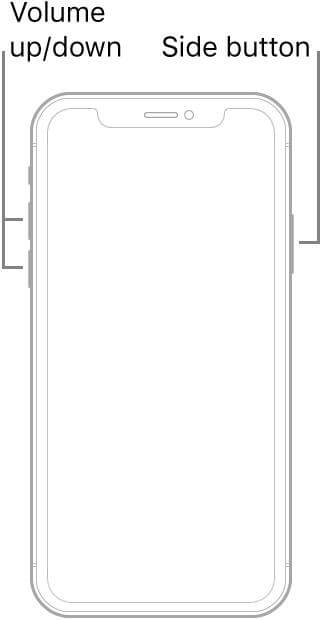
Steps to Use for iPhone 8, X, 11, and all latest models:
1: Tap and hold the button for the Volume Down button and release it.
2: Repeat the Step 1 process using the Volume Down button.
3: Locate the side button and hold it down until you see the Apple logo on the screen.
#Fix 4. Turn off Low Power Mode/Low Data
Your iPhone may act sluggish because of low power mode, which helps optimize battery life. However, disabling this feature may improve the functioning of location services.
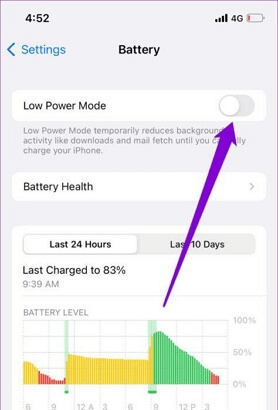
Steps to Unable the Low-Power or Low Data Mode:
1: Open Settings.
2: Tap on Battery.
3: Locate Low Power Mode and turn the feature off.
Sometimes, the low data mode is responsible for location services creating issues in your iPhone, so you can opt for the steps as;
1: Tap on settings.
2: Tap on the Mobile Service or Cellular Data option.
3: Tap on the Mobile Data option.
4: Turn off the low data mode.

#Fix 5. Making Changes in Settings for Date and Time
If the iPhone location is not working, it may be due to the wrong date and time, and making alterations may help. To resolve the issue, you can change the date and time of your current location.
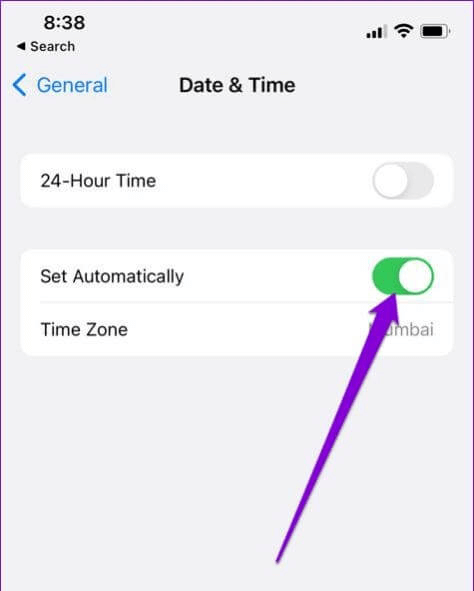
Steps to alter the date and time using your iPhone:
1: Open Settings.
2: Tap the General icon and the Date and Time option.
3: Click on the Set Automatically option.
#Fix 6. Make Sure Screen Time Settings Are in Order
Sometimes, it is better to check screen time settings, as this may help with phone location services issues.
Steps to fix Screen Time settings:
1: Open Settings.
2: Click on Screen Time and Content and Privacy Restrictions.

3: Tap on Location Services.
4: Make sure location services turn green.
#Fix 7. Try Working with Airplane Mode
Resisting the Airplane mode may help refresh the network connectivity, restoring the network and thereby making location services operational.
Steps to try Airplane mode:
1: Open Settings.
2: Locate Airplane mode and enable it.
3: After a few seconds, turn it off.
However, if you want to quickly change your iPhone's location for any reason, head to Part 3 of this guide to learn an effective method for altering its location settings. This method can be beneficial for apps that rely heavily on location data.
Part 3. A Quick Solution to Change iPhone Location
If you need a quick fix for your iPhone location services not working, consider using a Virtual Location app to change your device's location. One reliable option is AWZ AnyPorter, a powerful tool that instantly lets you modify your iPhone's GPS location. This app is ideal for various purposes, such as accessing region-specific content, testing apps, playing Pokemon Go without moving, exploring different regions, and finding new Pokémon from your home.
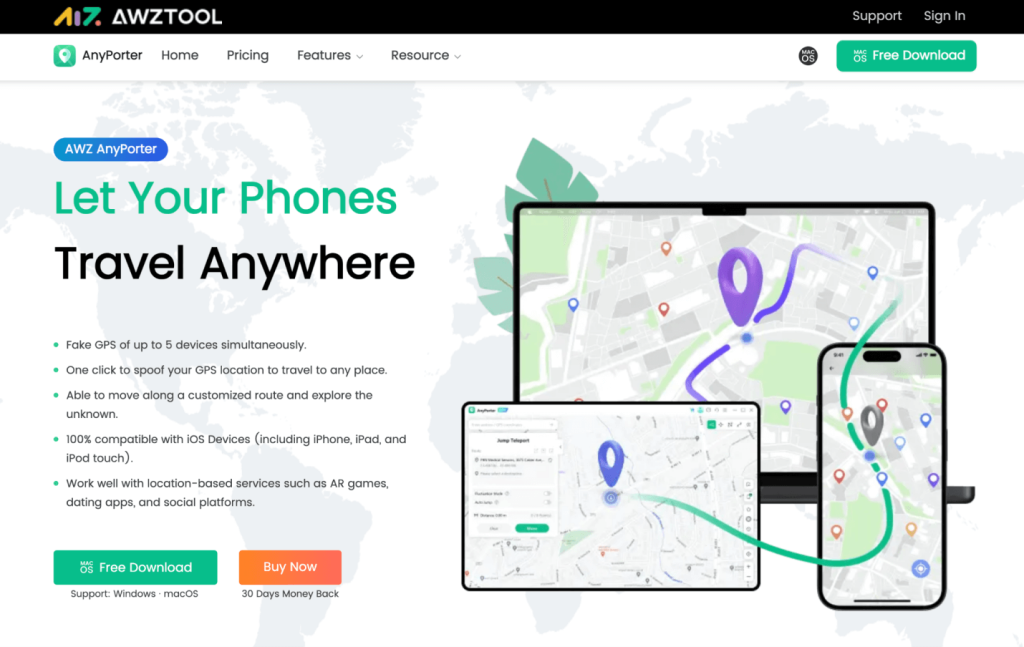
Critical features of AWZ AnyPorter include;
- Spoofs GPS location to make movements easy.
- Supports up to 5 devices for creating fake GPS.
- Allows keyboard control by using shortcut keys.
- Capability to simulate movement along a specific route.
- Compatibility with all iOS versions.
Steps to use to change location on iPhone via AnyPorter
1: Start downloading and installation of AnyPorter software on your computer.
2: Now launch the app and connect your iPhone using a USB cable simultaneously. Move ahead by creating a route or selecting a destination.
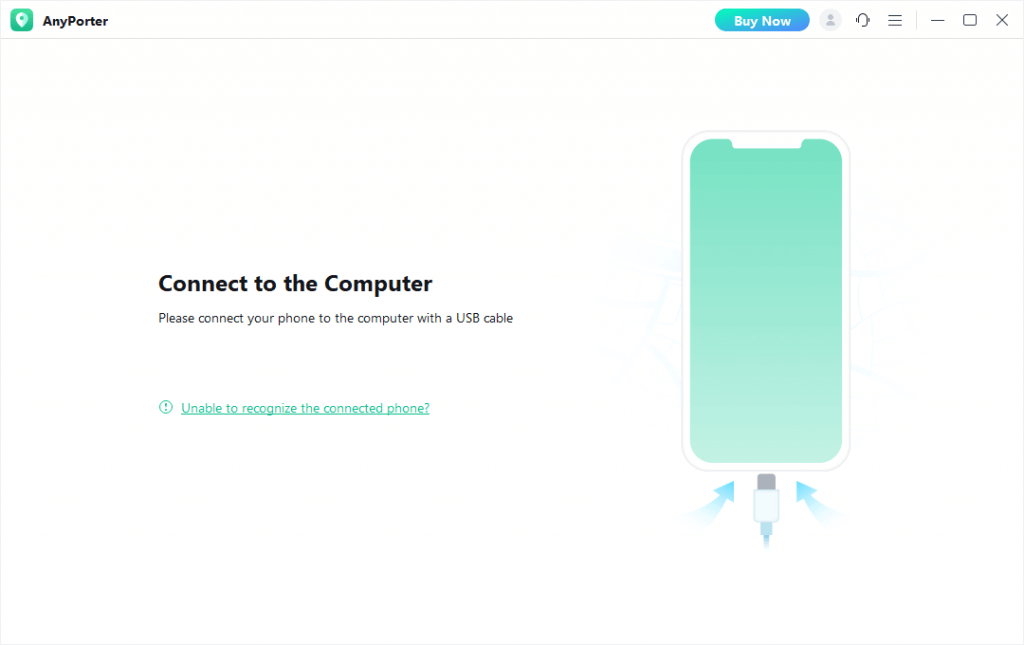
3: Now tap the Move button to reach the selected spot.

Bottom Line
At times, encountering iPhone location services not working can be frustrating, but multiple solutions exist to resolve this issue. Following the troubleshooting methods provided, you can ensure your location services function correctly, enhancing your app experiences and device usability. For those needing a quick fix or advanced location customization, tools like AWZ AnyPorter offer a seamless way to change your iPhone's location effortlessly.
Don't let location service issues hinder your daily activities. Explore the solutions mentioned and take control of your device's location settings. Discover the full capabilities of AWZ AnyPorter and easily customize your iPhone's location to suit your needs today.


 1. How to Change Location on POF (Easy Methods Included)